

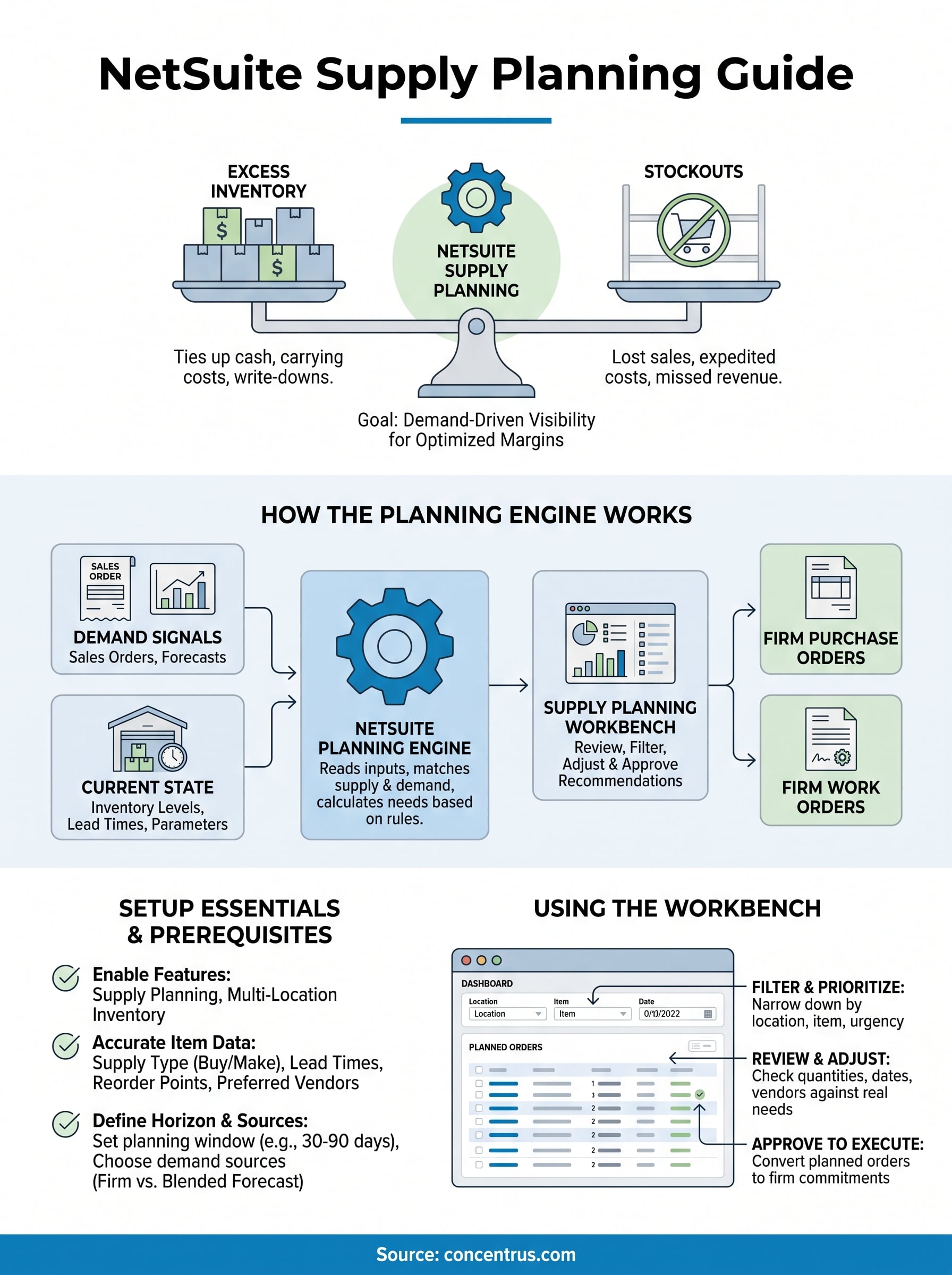
Running out of stock costs you sales. Carrying too much inventory ties up cash. For CFOs and operations leaders at midsized companies, finding the balance between those two extremes is a daily challenge, and it’s exactly the problem that NetSuite supply planning is built to solve. The module gives you demand-driven visibility into what to order, when to order it, and how much to keep on hand, all within a single platform.
But having the tool and getting real value from it are two different things. Supply planning in NetSuite involves configuration decisions around demand plans, supply plans, item planning methods, and the Supply Planning Workbench, each of which directly affects whether your inventory investment helps or hurts your margins. Without proper setup, the module can generate more noise than clarity.
This guide breaks down NetSuite’s supply planning features, walks through setup essentials, and shows you how to use the Supply Planning Workbench effectively. At Concentrus, we implement and optimize NetSuite for midsized companies using our ROI Roadmap™ methodology, so every configuration decision ties back to measurable financial outcomes, supply planning included.
Why NetSuite supply planning matters to finance
Supply planning is not just an operations concern. Every inventory decision carries a direct financial consequence, and CFOs who treat it as someone else’s problem often find those consequences showing up in margin reports at the worst possible time. NetSuite supply planning connects your demand signals directly to purchasing and production workflows, which means finance gains visibility into future inventory commitments before they become cash outflows that are hard to unwind.
Inventory imbalances hit your balance sheet directly
Excess inventory inflates your current assets while quietly draining working capital through carrying costs, warehouse overhead, and eventual write-downs at year end. On the other side, stockouts force expensive expedited purchase orders or cause you to miss revenue entirely. Both outcomes damage your operating margins, but they show up differently on reports, which makes them easy to underestimate until a quarter-end review surfaces the full picture. Finance leaders at midsized companies are often caught reacting to these swings instead of preventing them. The root cause in most cases is not poor intent. It is a disconnected planning process where procurement, warehousing, and finance each operate on different data sets that never quite reconcile.
Supply planning gives finance a forward-looking view of inventory exposure, not just a backward-looking report of what already went wrong.
Accurate plans reduce surprise costs
When your supply plan reflects real demand, your purchase orders align with actual need rather than gut instinct or outdated reorder points set years ago. That alignment directly reduces the volume of rush orders, which typically carry premium pricing from suppliers and push up your cost of goods. Your accounts payable team can also forecast cash requirements more accurately because commitments are planned rather than reactive, which matters significantly for midsized companies where cash flow is the primary operating constraint.
NetSuite supply planning basics and prerequisites
Before you configure anything, you need to understand what NetSuite supply planning actually requires to function. The planning engine depends on several features being enabled in your account and specific item-level data being accurate before it can generate useful results.
Features to enable first
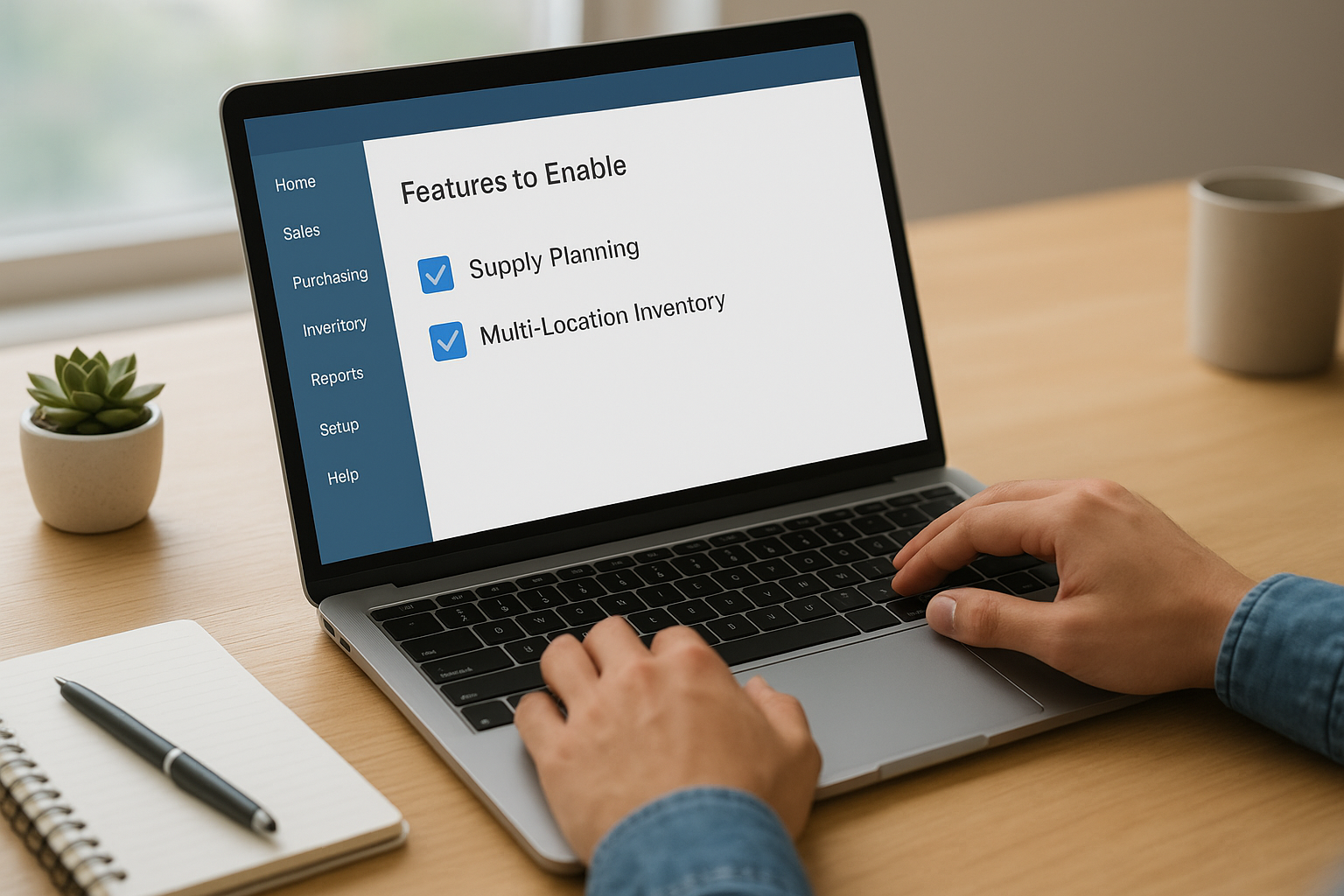
NetSuite supply planning requires the Supply Planning feature to be activated under Setup > Company > Enable Features. You also need Multi-Location Inventory enabled if you manage stock across more than one warehouse. Without both features active, the Supply Planning Workbench will not appear in your navigation, and demand signals from sales orders or forecasts will not flow into the planning engine correctly.
Confirm that your subsidiary and location settings are correctly configured before enabling supply planning features, or your plans will generate against the wrong entities.
Item-level data that must be in place
Each item you plan needs a supply type assigned, either “buy” for purchased goods or “make” for manufactured items. Your lead times, preferred vendors, and reorder points must also be accurate on each item record. Gaps in this data are the most common reason planning outputs look unreliable, even in a correctly configured NetSuite environment.
How the planning engine works in NetSuite
The NetSuite planning engine runs on a demand-supply matching process that pulls data from multiple sources in your account. When you trigger a planning run, the engine reads open sales orders, demand forecasts, existing inventory levels, and open purchase orders to calculate what you need, where you need it, and when you need it.
Supply and demand signal flow
Your demand signals come from two main sources: firm demand (open sales orders and work orders) and planned demand (forecasts you create in the Demand Planning module). The engine combines both, subtracts available inventory and committed supply, then generates planned purchase orders or work orders to fill any gaps. This calculation respects the lead times and reorder settings you defined on each item record, which is why accurate item data is a prerequisite, not optional.
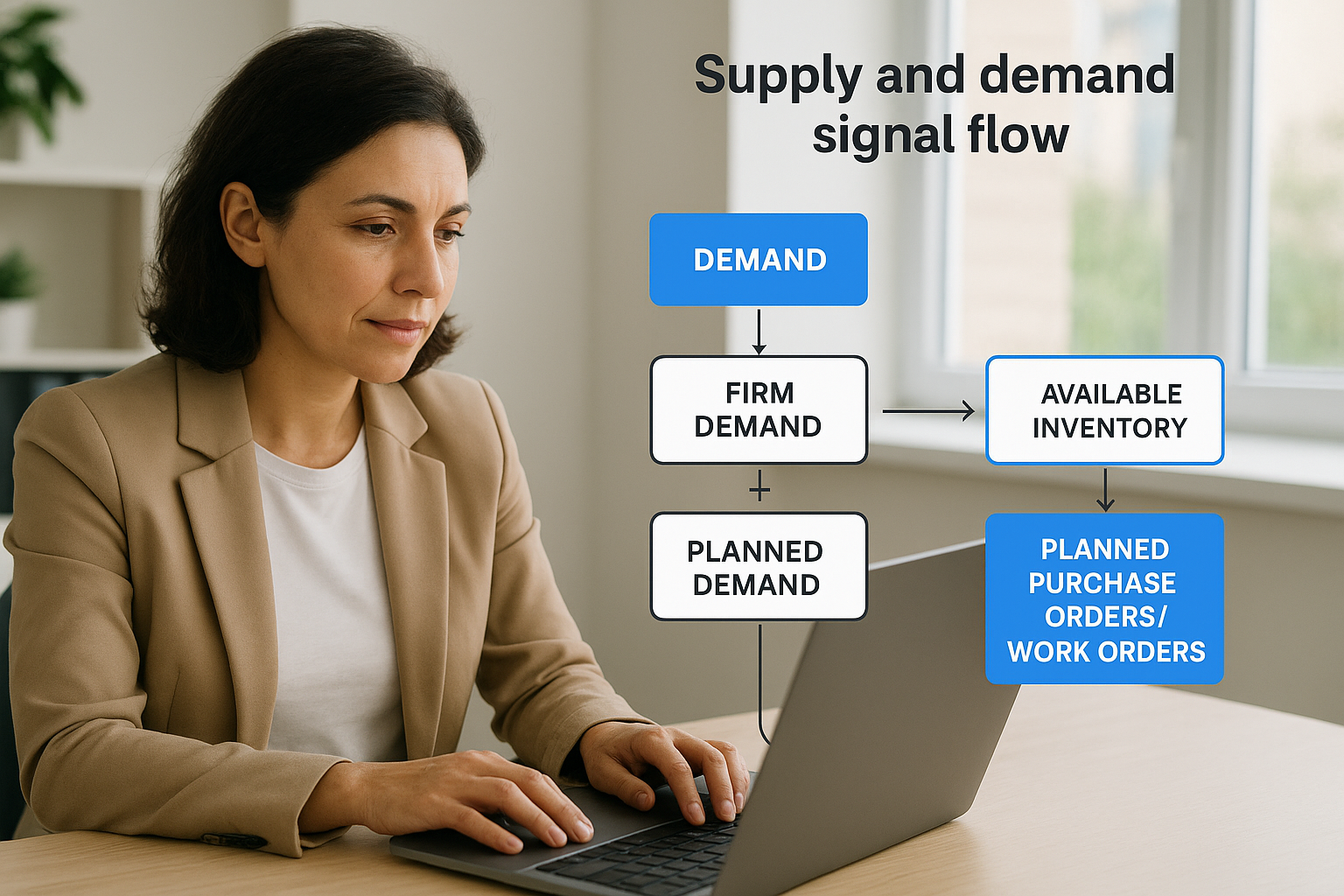
The engine only produces reliable output when both demand signals and item-level supply parameters reflect your real operational conditions.
NetSuite supply planning does not run automatically on a schedule by default. You control when each planning run executes, which gives your team the opportunity to review inputs before the system commits new supply orders. That manual step is a valuable checkpoint, not a limitation.
How to set up NetSuite supply planning step by step
Setting up NetSuite supply planning correctly follows a logical sequence. Skipping steps or rushing item-level configuration produces plans that look complete but generate misleading purchase recommendations, which is worse than no plan at all.
Define your planning horizon and demand sources
Start by deciding how far out you want the engine to plan, typically 30, 60, or 90 days, and which demand sources to include. Under Setup > Demand Planning, you configure whether the engine reads firm sales orders only, or blends firm orders with forecast quantities. For most midsized companies, starting with firm demand only keeps outputs clean while your team learns to trust the system.
Start with firm demand only, then layer in forecast-based demand once your team validates the engine’s baseline output.
Create supply plans by location and item group
Navigate to Supply Planning > Supply Plans and create a plan scoped to the locations and item groups you want to manage first. Assign the correct planning horizon, demand plan, and supply parameters for each group. Running a narrow first plan, such as your top 20 items by revenue impact, lets you validate outputs quickly before expanding to your full catalog. Key fields to configure on each plan include:
- Planning method: fixed reorder point, min/max, or days of supply
- Planning horizon: how many days forward the engine looks
- Demand plan: which forecast source feeds the calculation
- Location: the warehouse or subsidiary the plan applies to
How to use the Supply Planning Workbench
The Supply Planning Workbench is where NetSuite supply planning becomes actionable. After you run a supply plan, navigate to Supply Planning > Supply Planning Workbench to review the engine’s recommendations before any purchase orders get created. The Workbench displays planned orders alongside the demand and supply data that drove each recommendation, so you can evaluate whether the output reflects your actual business conditions.
Review and filter planned orders
Your first step in the Workbench is filtering by location, item, or date range to narrow the output to what your team needs to act on today. Each row shows the item, required date, planned quantity, and suggested vendor, giving you a single view to prioritize approvals. You can also sort by due date to catch any urgent supply gaps before they turn into stockouts.
Approve or adjust recommendations
Once you review a planned order, you either approve it directly or edit the quantity and date before approval. Approving converts the planned order into a firm purchase order or work order within NetSuite, which triggers the normal procurement or production workflow. Adjustments are common when lead times have shifted or a supplier has a minimum order quantity that differs from what the engine calculated.
Only approve planned orders after confirming the underlying demand and lead time data is current.
Next steps to keep plans accurate
Getting NetSuite supply planning configured is the starting point, not the finish line. Your plans stay accurate only when you review item-level data regularly and update lead times whenever supplier conditions change. Set a monthly rhythm to audit your top items by revenue impact, confirm that demand signals reflect current customer activity, and adjust reorder parameters before the engine runs its next cycle.
Expanding your planning coverage also pays off over time. Once your team trusts the baseline output for core items, add forecast-based demand to your supply plans to extend your visibility window. Run workbench reviews on a weekly cadence to catch gaps before they reach your fulfillment team.
If your supply planning setup needs a structured approach tied to measurable financial outcomes, Concentrus can help you build it. Our ROI Roadmap™ methodology connects every ERP configuration decision to the KPIs that matter most to your finance team.