

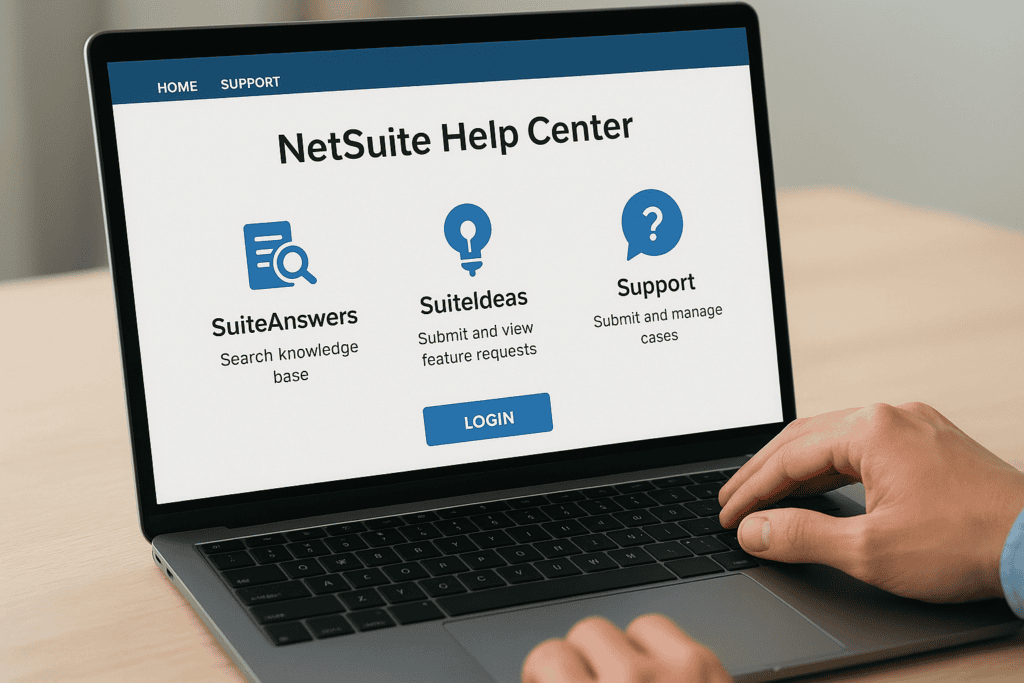
When something breaks or you need to figure out a specific feature, the NetSuite Help Center is your first stop for official documentation, user guides, and technical support. It’s where NetSuite consolidates everything from product release notes to step-by-step configuration walkthroughs, all behind a single login.
But finding what you actually need isn’t always straightforward. Between SuiteAnswers, SuiteIdeas, and the various support tiers, knowing where to look can save you hours of frustration. That’s something we see constantly at Concentrus, teams that struggle not because they lack access to resources, but because they don’t know which resource fits their problem.
This guide walks you through how to access the NetSuite Help Center, log in to SuiteAnswers, navigate the documentation, and contact NetSuite support directly. We’ll also cover when self-service resources are enough and when it makes sense to bring in an implementation partner for deeper issues.
What the NetSuite Help Center includes
The NetSuite Help Center is not a single page but a collection of interconnected resources that cover everything from basic navigation to advanced configuration. Knowing what’s available before you need it means you’ll spend less time searching and more time solving. Each resource within the Help Center serves a different purpose, so understanding the distinctions up front helps you pick the right tool for the right problem.
SuiteAnswers: documentation, guides, and training
SuiteAnswers is the core of the NetSuite Help Center. It’s a searchable knowledge base that contains thousands of articles, help topics, and training videos tied directly to the NetSuite platform. When you search for a feature, a field, or an error code, SuiteAnswers is the first place to go. Articles are organized by product area, release version, and topic, so you can browse by category or search by keyword depending on what you already know.
SuiteAnswers also includes answer ratings, which shows you how helpful other users found a given article, a quick signal for whether a result is worth your time.
You’ll also find SuiteTraining content embedded in SuiteAnswers, including on-demand videos that walk through specific workflows. These are especially useful when you’re onboarding new team members or rolling out a feature your team hasn’t used before.
Support cases and contact options
When documentation doesn’t resolve your issue, the Help Center gives you direct access to NetSuite’s support team through its case management system. You can submit a new case, track open cases, and review closed ones, all from the same interface. Cases are tied to your account, which means the support team can pull your configuration details and respond with context-specific guidance rather than generic answers.
NetSuite structures its support into Basic, Premium, and Advanced Customer Support plans. The plan your company holds determines response time targets, available communication channels, and whether you get a dedicated support contact. If you’re unsure which plan your organization has, your system administrator or NetSuite account manager can confirm it quickly.
SuiteIdeas and release notes
SuiteIdeas is the platform’s feature request and community voting tool. If you want a capability that doesn’t exist yet, you submit an idea and other users can vote on it. NetSuite’s product team reviews high-vote submissions when planning future releases. It doesn’t guarantee your request gets built, but it gives users a direct channel to influence the product roadmap.
Release notes live inside the Help Center and document every change NetSuite ships with each version update. Reviewing them before a scheduled update helps you anticipate changes that could affect your workflows, custom scripts, or third-party integrations before they cause problems in a live environment.
Before you start: access, roles, and permissions
Before you open a single help article, confirm you have the right access in place. The NetSuite Help Center is tied directly to your NetSuite account, which means your login credentials, assigned role, and support plan all shape what you can see and do once you’re inside. Skipping this check up front leads to dead ends that have nothing to do with the documentation itself.
What you need to log in
You access the Help Center using your standard NetSuite login credentials, the same email and password you use to enter your NetSuite environment. If your company uses single sign-on (SSO), check with your system administrator to confirm how authentication is configured before attempting to log in through the Help Center portal.
If you don’t have a NetSuite login yet, your system administrator needs to create a user record for you before you can access any part of the Help Center.
Knowing which NetSuite domain your company uses matters here too, either netsuite.com or a specific account-based URL. The support portal address can differ depending on your account setup, so confirm the correct URL with your admin if your login attempt fails or redirects unexpectedly.
How roles affect what you can see
Your assigned role in NetSuite controls more than what you can do inside the application. It also determines which support features appear inside the Help Center. For example, only users with the Administrator role or a role that includes the Support Center permission can submit and manage support cases.
If you try to access the case management section and find it unavailable, your role likely needs a permission update rather than a separate login. Ask your NetSuite administrator to review your role under Setup > Users/Roles > Manage Roles and add the Support Center permission without altering the rest of your access level.
Step 1. Log in and open the right help site
Once you have your credentials and know your role has the right permissions, you’re ready to access the NetSuite Help Center. The login process itself is straightforward, but the entry point matters. NetSuite gives you two main ways to get in: directly through your active NetSuite session, or through the standalone support portal URL tied to your account.
Navigate to the Help Center portal
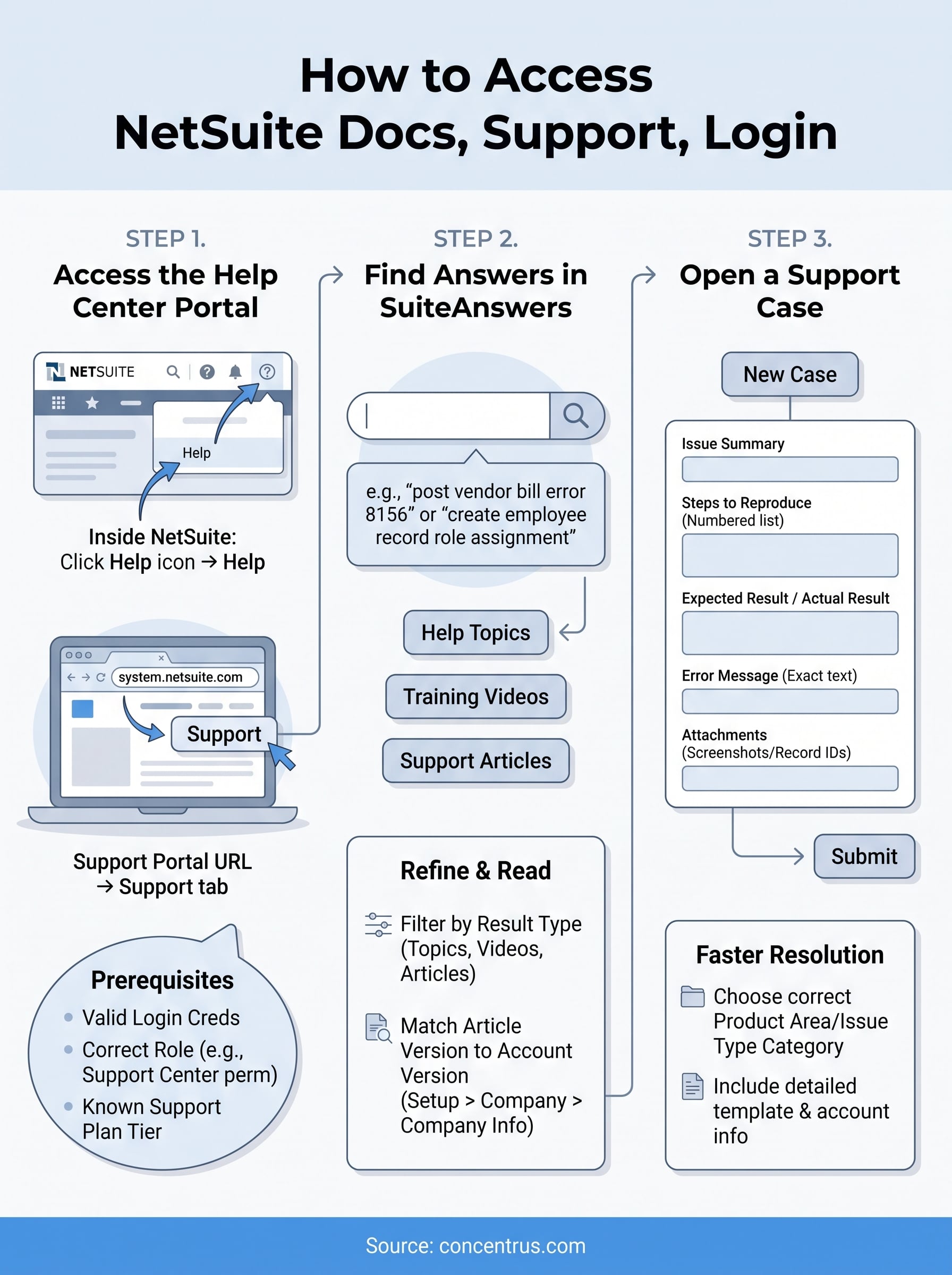
The most reliable way to reach the Help Center is from inside your NetSuite account. Once you’re logged in, click the question mark icon in the top-right corner of the navigation bar. This opens a dropdown with a “Help” link that takes you directly to SuiteAnswers, scoped to your current account version and region.
If you access SuiteAnswers through the in-app help icon, search results automatically filter to match your NetSuite version, which gives you more relevant documentation than a generic external search.
You can also go directly to the support portal at system.netsuite.com/pages/customerlogin.xhtml and sign in with your NetSuite credentials. From there, select the Support tab to reach case management, or choose “Help Center” to open SuiteAnswers in a new tab.
What to do if your login fails
A failed login usually comes down to one of three causes: incorrect credentials, an expired password, or an SSO configuration issue. Start by confirming your email address matches exactly what your administrator used when creating your user record. Password resets go through your NetSuite login page directly, not through a separate portal.
If your company uses SSO, you won’t authenticate with a standard password at all. Your admin controls access through your identity provider, such as Okta or Azure AD. Reach out to your system administrator rather than attempting multiple manual login attempts, since repeated failures can trigger an account lockout that requires admin intervention to clear.
Step 2. Find answers fast with SuiteAnswers search
Once you’re inside the NetSuite Help Center, SuiteAnswers is where you’ll spend most of your time. The search bar sits at the top of the page, and how you phrase your query determines whether you get a precise answer in 30 seconds or spend 15 minutes clicking through irrelevant articles.
How to structure your search query
Vague searches return vague results. Instead of typing “invoice problem,” use specific terms tied to the feature and the action you’re trying to take. The table below shows the difference between weak and strong search queries:
| Weak query | Strong query |
|---|---|
| invoice problem | “post vendor bill error 8156” |
| report not working | “saved search filter by subsidiary” |
| how to add user | “create employee record role assignment” |
Use exact field names or error codes when you have them. NetSuite articles are written with platform-specific terminology, so matching that language in your query pulls up more accurate results faster.
If you see an error message in NetSuite, copy the exact error text and paste it directly into SuiteAnswers rather than paraphrasing it.
How to filter and read results
After your search runs, SuiteAnswers displays results grouped by type: Help Topics, Training Videos, and Support Articles. Help Topics cover product documentation, Training Videos walk through workflows step by step, and Support Articles address known bugs or configuration edge cases. Selecting the right filter cuts out noise immediately.
Read the article’s version tag before you follow any instructions. NetSuite releases two major updates per year, and a guide written for a previous version may describe menu paths or field names that no longer match your environment. Confirm the version shown in the article matches your account’s current release, which you can find under Setup > Company > Company Information.
Step 3. Open a case or contact NetSuite Support
When documentation doesn’t resolve your issue, the NetSuite Help Center gives you direct access to NetSuite’s support team through its case management system. You reach it by logging into the support portal, clicking the Support tab, and selecting “New Case.” From there, you fill out a structured form that routes your request to the right team.
How to submit a new support case
You submit a new case directly through the support portal at system.netsuite.com. Once you click “New Case,” the form asks you to select a product area and issue type from a dropdown menu before you write anything. Choosing the correct category upfront routes your case to a specialist rather than a general queue, which cuts your response time significantly.
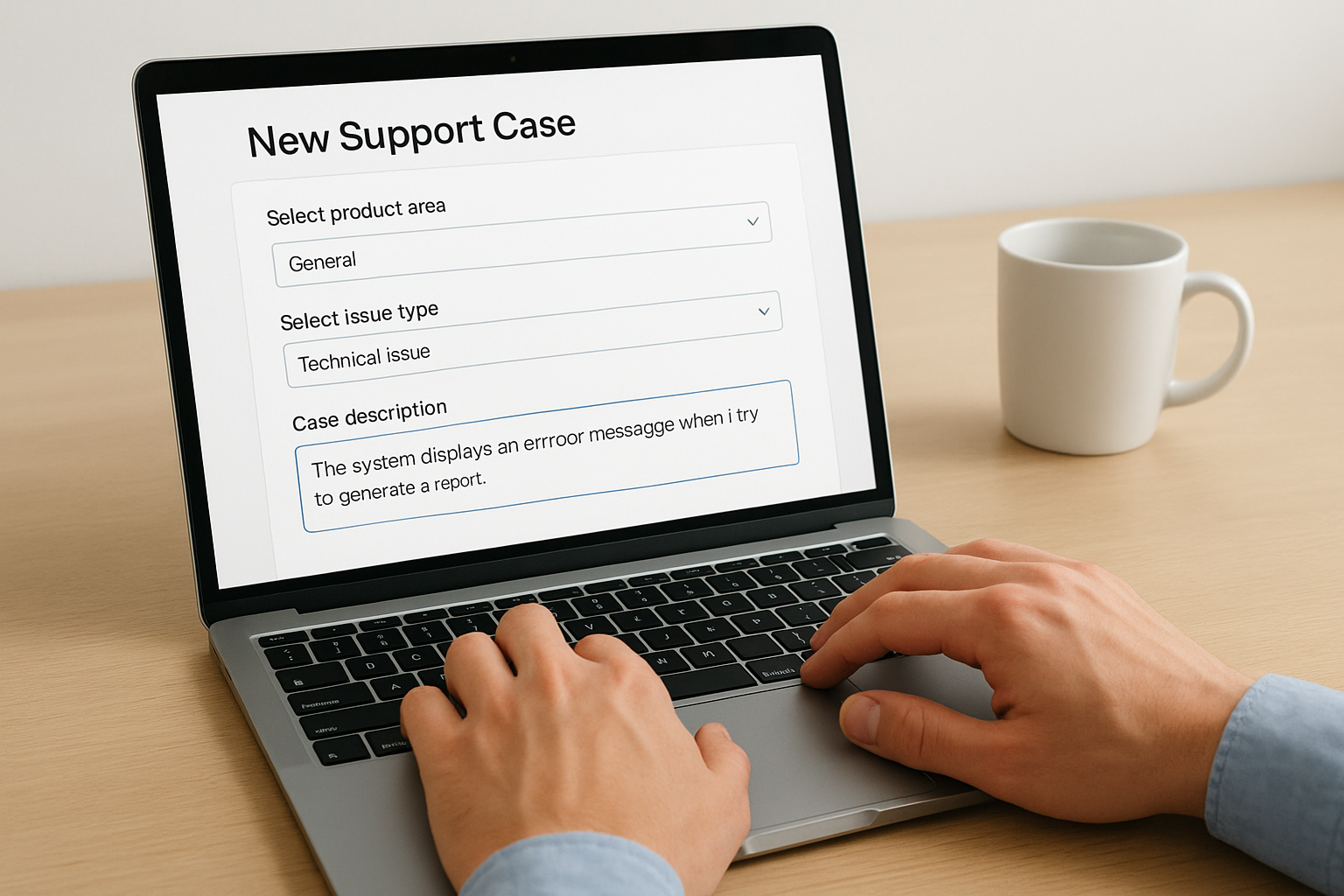
Your support plan tier determines whether NetSuite responds within two hours, four hours, or by the next business day, so confirm your tier before you estimate resolution time.
What to include in your case for faster resolution
The detail you put into your case description directly determines how quickly the support team can help you. Vague submissions generate clarification requests that delay the actual fix. Use the template below as a baseline for every case you submit:
| Field | What to include |
|---|---|
| Issue summary | One sentence describing what failed or is missing |
| Steps to reproduce | Numbered list of exactly what you clicked or entered |
| Expected result | What the system should have done |
| Actual result | What the system did instead |
| Error message | Exact text copied from the screen |
| Account ID | Your NetSuite account number |
| Version | Your current NetSuite release (found in Setup > Company) |
Attaching a screenshot or screen recording to your case is optional but speeds up diagnosis on complex issues. If your problem involves a specific transaction or record, include the internal ID of that record so the support agent can pull it directly without additional back-and-forth.
Wrap up and next steps
The NetSuite Help Center gives you access to product documentation, SuiteAnswers search, and direct case submission, all from a single login. You now know how to confirm your role permissions, navigate SuiteAnswers efficiently, and structure a support case that gets resolved faster. Those steps alone will cut the time you spend waiting on answers.
Self-service resources handle most routine questions well. But when you’re dealing with a failed implementation, broken workflows, or an ERP that isn’t delivering the ROI your organization expected, documentation only goes so far. At that point, you need a partner who understands both the platform and your financial goals, not just the technical side of the software.
Concentrus specializes in exactly that combination. If your NetSuite environment isn’t performing the way it should, talk to an ERP and ROI expert at Concentrus to find out what’s getting in the way and how to fix it.