

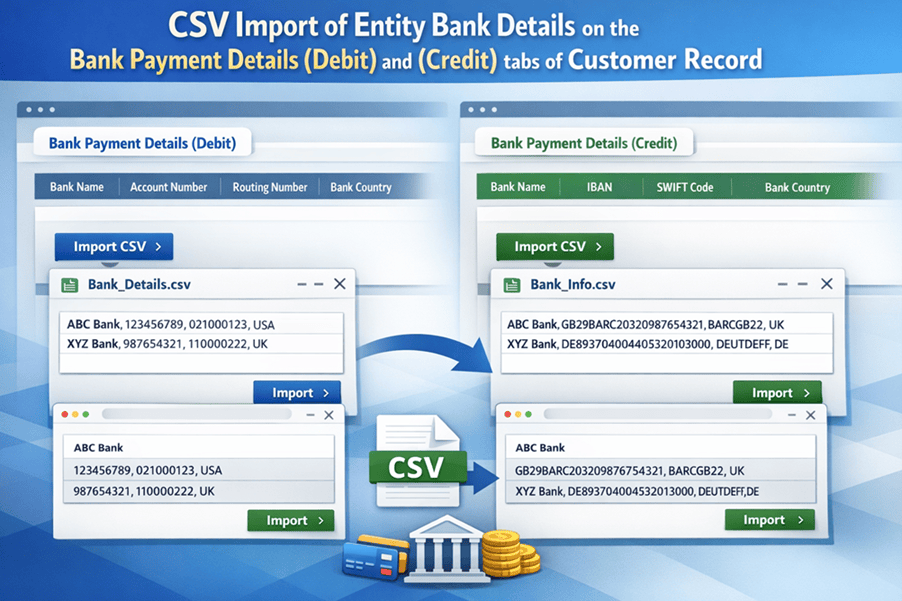
How to Import Entity Bank Details in NetSuite for Debit and Credit Bank Payment Records
For NetSuite administrators, finance teams, and implementation consultants, importing entity bank details is one of those tasks that looks simple on the surface but can create costly problems if done incorrectly. If the import structure, payment file format, or parent entity mapping is off, payment processing can fail, direct debit files can break, and bank data can become unreliable across your ERP environment.
That is why bulk importing Entity Bank Details in NetSuite should be treated as a controlled data process, not just a CSV upload exercise. Oracle documents that entity bank details can be imported using the Import Assistant by selecting Custom Records as the import type and Entity Bank Details as the record type, which makes these imports part of a formal record management process inside the Electronic Bank Payments framework (Oracle, n.d.-a).
This matters whether you are importing bank details under the Bank Payment Details (Debit) tab or the Bank Payment Details (Credit) tab. The technical steps are similar, but the business use case and parent field mapping can differ depending on whether the bank details support outgoing payments, incoming collections, or refund-related payment workflows.
What Are Entity Bank Details in NetSuite?
Entity Bank Details are records used by NetSuite’s Electronic Bank Payments functionality to store the banking information associated with customers, vendors, employees, or partners. Oracle explains that bank records can be set up for these entity types manually or through CSV import, allowing companies to manage electronic payment data in a more scalable and standardized way (Oracle, n.d.-b; Oracle, n.d.-c).
These records are especially important in environments where businesses process ACH payments, direct debits, customer refunds, or other bank-based transactions that rely on payment file generation. Oracle also notes that payment file formats are part of this setup because Electronic Bank Payments uses payment file format definitions to support the bank-specific structure required for payments and receivables processing (Oracle, n.d.-d).
That means the Entity Bank Details record is not just a place to store account numbers. It is part of the infrastructure that supports bank file generation, payment execution, and payment compliance.
Why CSV Import Is the Best Option for Large Entity Bank Detail Loads
For a small number of bank records, manual entry may be manageable. But when finance or ERP teams need to set up bank details for many customers or entities, CSV import is the faster and safer path, assuming the data is prepared correctly.
Oracle’s CSV import framework is designed to load data by record type, and required fields must be present or mapped properly in the Import Assistant (Oracle, n.d.-e). In the case of Entity Bank Details, Oracle specifically documents that you can import them with Import Type = Custom Records and Record Type = Entity Bank Details, then map the required fields during the import process (Oracle, n.d.-a).
The value of this approach is consistency. Instead of manually entering bank data one record at a time, you create a repeatable and auditable upload method. That reduces user error, speeds setup, and supports a more controlled rollout when onboarding new entities or migrating bank detail data from another system.
Required CSV Fields for Entity Bank Details Imports
Your CSV file must include the fields that NetSuite requires for the Entity Bank Details record. Based on the workflow you provided, the core fields include:
- Name
- Payment File Template
- Bank Account Number
- Bank Number
- Type
- Bank Account Type
- Customer
In practice, the parent entity field is critical because the Entity Bank Details record must be tied back to the correct customer record. Oracle’s import documentation emphasizes that field mapping is where required values and related record connections are defined during the import process (Oracle, n.d.-a; Oracle, n.d.-e).
A practical best practice is to use the internal ID of the customer rather than relying on text-based names. Internal IDs are cleaner for import matching, reduce ambiguity, and help prevent records from attaching to the wrong entity.
How to Import Entity Bank Details for Bank Payment Details (Debit)
If you are importing Entity Bank Details under the Bank Payment Details (Debit) tab, begin by preparing the CSV file with the required fields. Then navigate to Setup > Import/Export > Import CSV Records. In the Import Assistant, Oracle’s documented approach is to choose Custom Records as the import type and Entity Bank Details as the record type (Oracle, n.d.-a).
For the import options, use:
- Data Handling = Add
- Custom Form = Standard Entity Bank Details Form
Then map the fields as follows:
- Name = Entity Bank Details : Name
- Bank Account Number = Entity Bank Details : Bank Account Number
- Type = Entity Bank Details : Type
- Payment File Template = Entity Bank Details : Payment File Format
- Bank Account Type = Entity Bank Details : Bank Account Type
- Customer = Entity Bank Details : Parent Customer
Once the mapping is complete, name the import and select Save and Run.
This debit-side import structure is important because NetSuite’s Electronic Bank Payments framework relies on correct payment file format assignment and parent entity linkage to support bank processing accurately (Oracle, n.d.-d).
How to Import Entity Bank Details for Bank Payment Details (Credit)
The process for importing Entity Bank Details under the Bank Payment Details (Credit) tab is nearly the same, but the parent mapping may differ based on how the credit-side bank record is being used in your setup.
Again, start with the CSV file containing the required fields:
- Name
- Payment File Template
- Bank Account Number
- Bank Number
- Type
- Bank Account Type
- Customer
Then go to Setup > Import/Export > Import CSV Records and use:
- Import Type = Custom Records
- Record Type = Entity Bank Details
- Data Handling = Add
- Custom Form = Standard Entity Bank Details Form
Map the fields as follows:
- Name = Entity Bank Details : Name
- Bank Account Number = Entity Bank Details : Bank Account Number
- Type = Entity Bank Details : Type
- Payment File Template = Entity Bank Details : Payment File Format
- Bank Account Type = Entity Bank Details : Bank Account Type
- Customer = Entity Bank Details : Parent Customer Refund
Then name the import and click Save and Run.
The difference here is the way the customer linkage is associated to the refund-related or credit-side bank detail usage. That distinction matters because the same record type may support different downstream payment behaviors depending on how the entity bank details are used in your payment process.
Why Payment File Format Selection Matters
One of the most overlooked parts of Entity Bank Details imports is the Payment File Template field. Oracle notes that Electronic Bank Payments provides standard payment file formats for payments, receivables, and Positive Pay transactions, and these formats define how payment data is structured for banking output (Oracle, n.d.-d).
This means your payment file format is not just descriptive metadata. It directly affects validation rules and electronic payment processing logic. Oracle also warns in its bank record setup guidance that changing the payment file format after saving entity bank details can cause validation and processing errors because previous format-specific data may still affect the record (Oracle, n.d.-f).
The practical takeaway is clear: choose the right payment file format before importing. Do not assume it can be changed later without risk.
Common Mistakes That Break Entity Bank Details Imports
The most common problems in these imports are not complicated, but they are costly:
- Using customer names instead of internal IDs
- Mapping the wrong parent customer field
- Selecting the wrong payment file format
- Formatting account numbers incorrectly
- Failing to validate whether the import is for debit-side or credit-side usage
- Assuming imported data is correct without testing payment execution
Oracle’s CSV import guidance makes clear that field mapping and required record structure are central to a successful load (Oracle, n.d.-a; Oracle, n.d.-e). In other words, the import can succeed technically while still producing records that are operationally wrong.
That is why post-import testing matters.
Best Practices Before You Save and Run
Before launching the import, use a small test file first. Validate that the imported bank details appear under the correct tab, tie to the right customer, and support the intended payment process. Confirm the payment file format is correct. Check the bank account type, bank number, and account number formatting carefully. If possible, test in sandbox before touching production data.
Finance teams should also maintain a controlled naming convention for imported bank records. That improves troubleshooting and makes ongoing maintenance easier when multiple payment methods or customer bank records exist.
Final Takeaway
Importing Entity Bank Details in NetSuite is more than a data load. It is part of the payment infrastructure that supports electronic payments, collections, and customer bank record management. Whether you are importing under the Bank Payment Details (Debit) tab or the Bank Payment Details (Credit) tab, the success of the process depends on correct CSV structure, correct parent customer mapping, correct payment file format assignment, and disciplined testing.
The bottom line is simple: if your Entity Bank Details import is treated casually, your payment operations can break. If it is handled with structure and control, NetSuite gives you a scalable way to manage banking data accurately across your ERP environment.
References
Oracle. (n.d.-a). Importing electronic bank payments data. Oracle NetSuite Help Center. (Oracle Docs)
Oracle. (n.d.-b). Setting up bank records. Oracle NetSuite Help Center. (Oracle Docs)
Oracle. (n.d.-c). Setting up bank records of vendors in the U.S. Oracle NetSuite Help Center. (Oracle Docs)
Oracle. (n.d.-d). Setting up payment file formats. Oracle NetSuite Help Center. (Oracle Docs)
Oracle. (n.d.-e). CSV Import FAQ. Oracle NetSuite Help Center. (Oracle Docs)
Send the next one and I’ll keep the same structure.