



If you are a RF-Smart user, you notice there are multiple ways to perform the stock count. Each stock count method allows you to count and track inventory based on your needs. Counts are all performed via RF-Smart mobile device function.
Stock Count
-
- Wall-to-Wall count
- Allows for unexpected items found on bins within the count
- Multiple users can count at the same time
- Lots and Serial Numbers are supported
- Blind count is conducted
- Uncounted items will be set to zero on-hand quantity.
- If you find multiple versions of the same item, it is cumulative
- Flow
-
- Create Count in NetSuite
- Start Count
- Use Scanner to Count in RF-SMART mobile device
- Complete Count
- Approve Count in Netsuite
- Close Count in Netsuite
-
Stock Count Directed
-
- Directs count of items with on hand quantity at location/ bin
- Can NOT count unexpected items
- Counts are displayed in bin then item sequence (bins are not required)
- Presents a visual indication when items are counted
- Supports lots and serial numbers
- If an item is not counted, it will not be zeroed out
-
- For Lots and Serials, counters are allowed to complete the counts upon “Submit” when using the Stock Count (Directed) mobile device function if the preference was flagged on the Stock Count form.
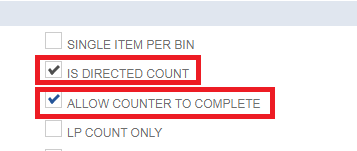
- For Lots and Serials, counters are allowed to complete the counts upon “Submit” when using the Stock Count (Directed) mobile device function if the preference was flagged on the Stock Count form.
-
- If the counters count the same bin/item twice, only the last count will be retained (There is a preference that can be set to make directed counts cumulative, but it is recommended to leave it this way).
- Flow
-
- Create Count in Netsuite
- Start Count
- Use Scanner to Count in RF-SMART mobile device
- Complete Count
- Approve Count in Netsuite
- Close Count in Netsuite
-
Stock Count (Dynamic)
-
- It is created directly from the scanner
- It is counted from the scanner RF-SMART > Client > Client> Stock Count Dynamic
- When a Dynamic count is created, it is automatically created in the “started” status
- The approvals are processed the same way as a Stock Count or Stock Count (Directed)
- Flow
-
- Create Count in RF-SMART mobile device
- Start Count in Netsuite
- Use Scanner to Count
- Complete Count
- Approve Count in Netsuite
- Close Count in Netsuite
-
If you want to learn more about how Netsuite and WMS can help your distribution business, contact Concentrus today to discuss your needs.
About Us
Concentrus is a complete NetSuite solutions provider that guides organizations through how to use NetSuite to reach highly focused business goals and objectives. We provide NetSuite implementation, developer, integration, and customization services to ensure that you have a long-term solution that is tailored to fit your systems, people, and processes.
Read About Our Implementation Methodology
Want more NetSuite Tips and Tricks? Check out our Short & ‘Suite videos