


Does your business need to record sales between subsidiaries? If so, here are a few things to consider.

What can NetSuite OneWorld do for your business?
- It allows your employees to use ONE system to manage all transactions and records for multiple legal entities, or subsidiaries
- Allows for business to be conducted across multiple tax jurisdictions, or nexuses, involving multiple currencies
How can NetSuite OneWorld help to manage transactions between subsidiaries?
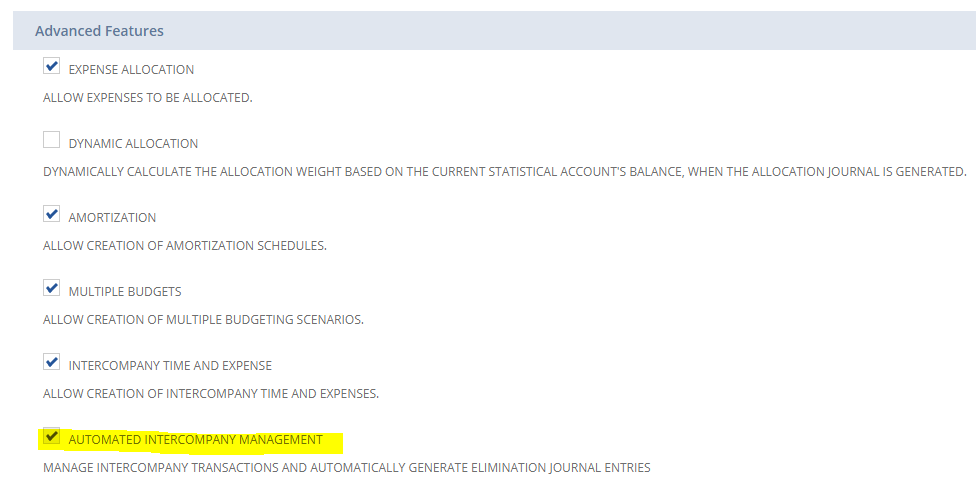
Typically, there are instances when one subsidiary will buy and sell to another subsidiary. NetSuite helps to manage this process by means of Automated Intercompany Management feature. In order to turn on this feature, go to Setup > Company > Setup Tasks > Enable Features. On the Enable Feature page, go to Accounting subtab > Advanced Features, mark the AUTOMATED INTERCOMPANY MANAGEMENT checkbox.
Once this feature is enabled, the system needs to know which subsidiary will be the “seller” and “buyer” on inventory. Since the AUTOMATED INTERCOMPANY MANAGEMENT feature is enabled, then this allows on the Customer and Vendor forms to be designated to represent a Subsidiary.
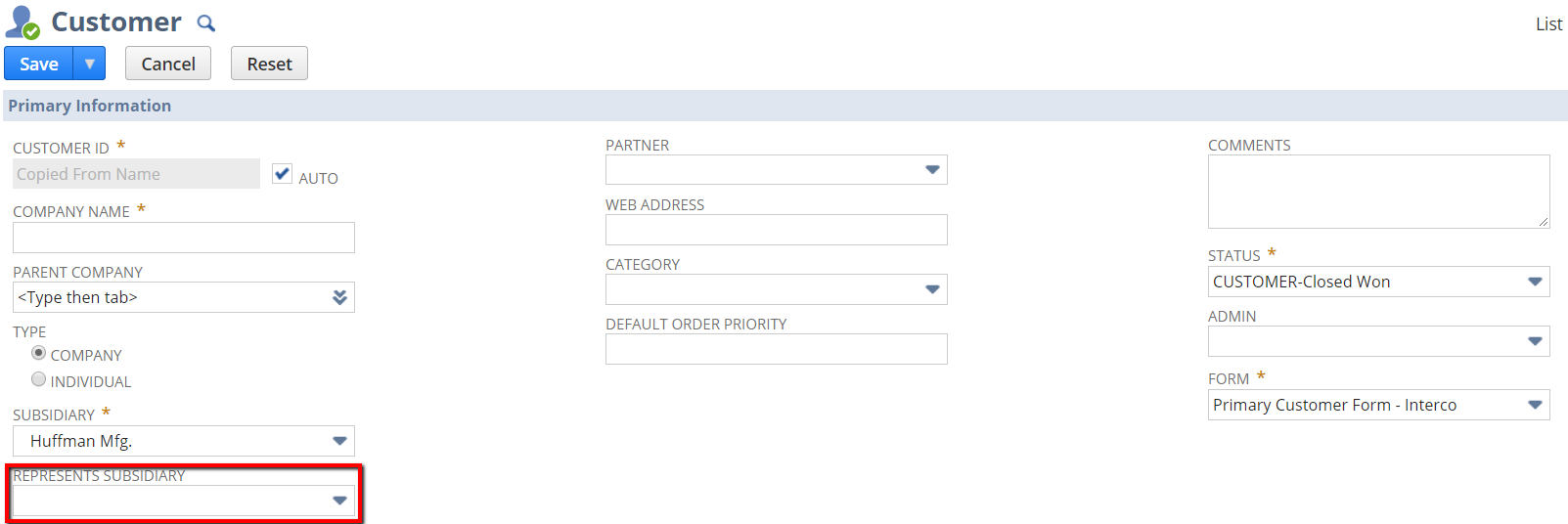
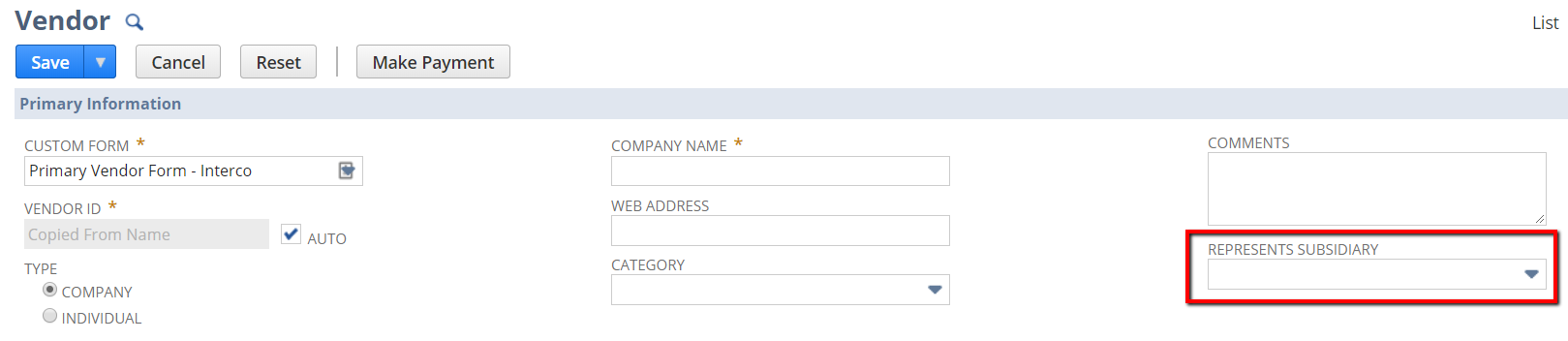
Once this is completed, you can essentially “buy” and “sell” items between subsidiaries.
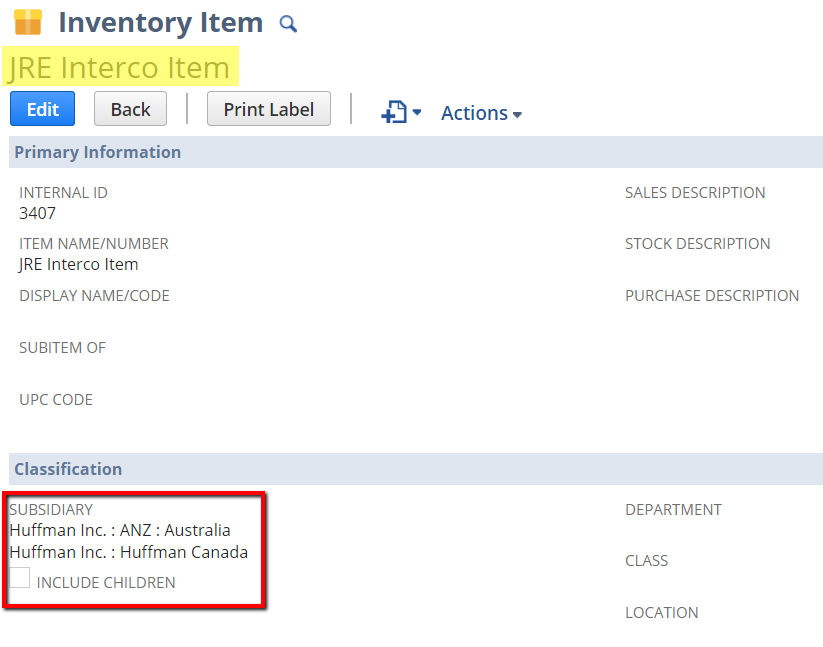
As a rule, the item must exist in both the subsidiary that will be the “buyer” and the subsidiary that will be the “seller.” This can be done by selecting the subsidiaries on the item record.
The “buyer,” or the destination subsidiary, needs to create a purchase order for the Vendor, that represents the “seller,” or source subsidiary.
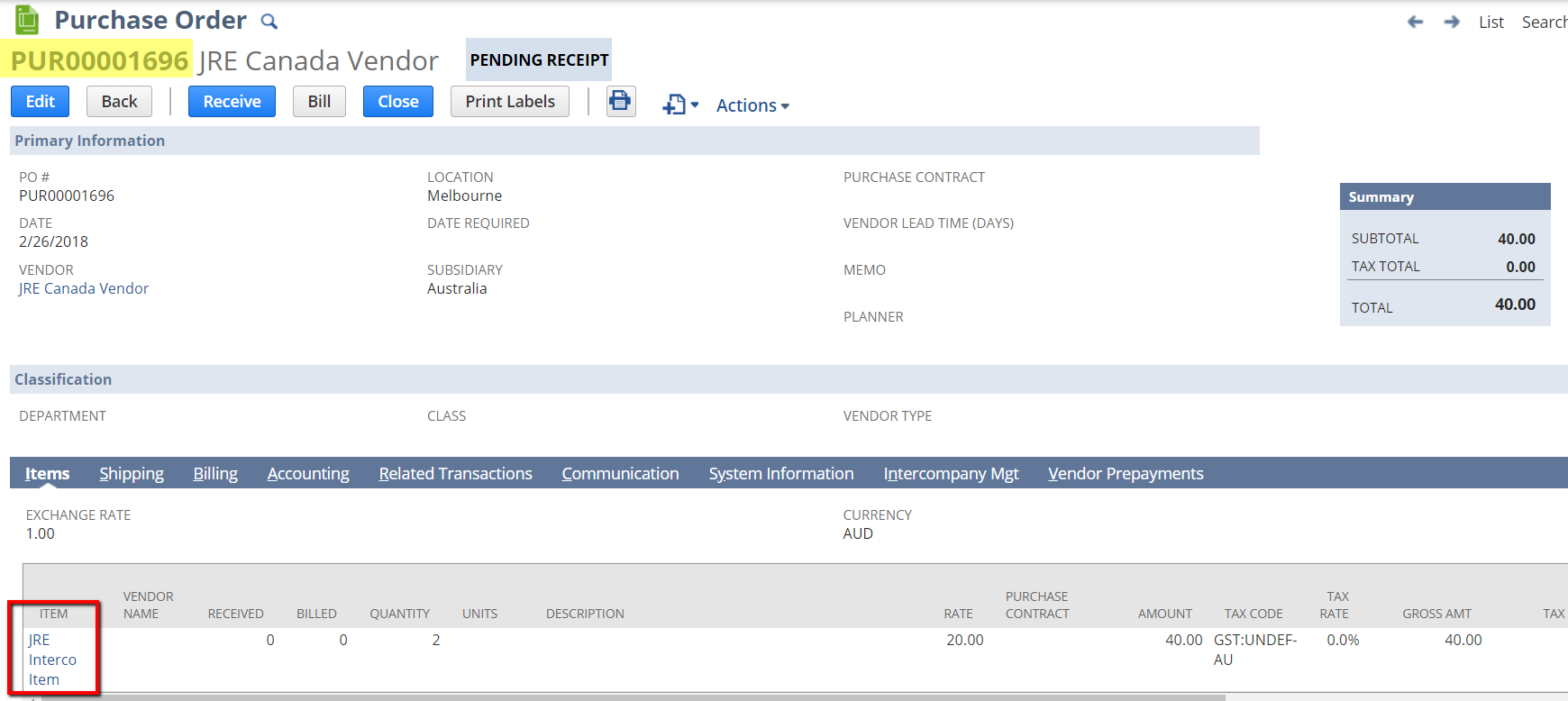
Once the purchase order is created, then using the Manage Intercompany Sales Orders page, a corresponding sales order from the source subsidiary can be created.
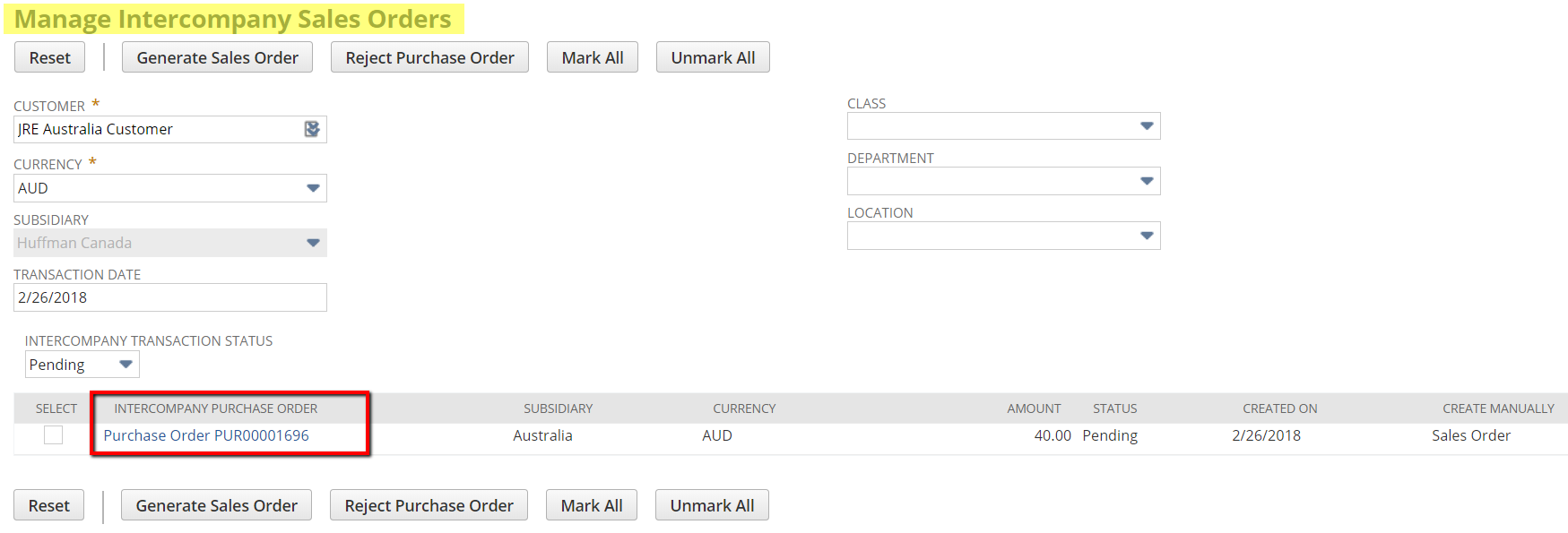
After clicking the “Generate Sales Order” button on the Manage Intercompany Sales Orders page, the purchase order will be paired with the corresponding intercompany sales order.
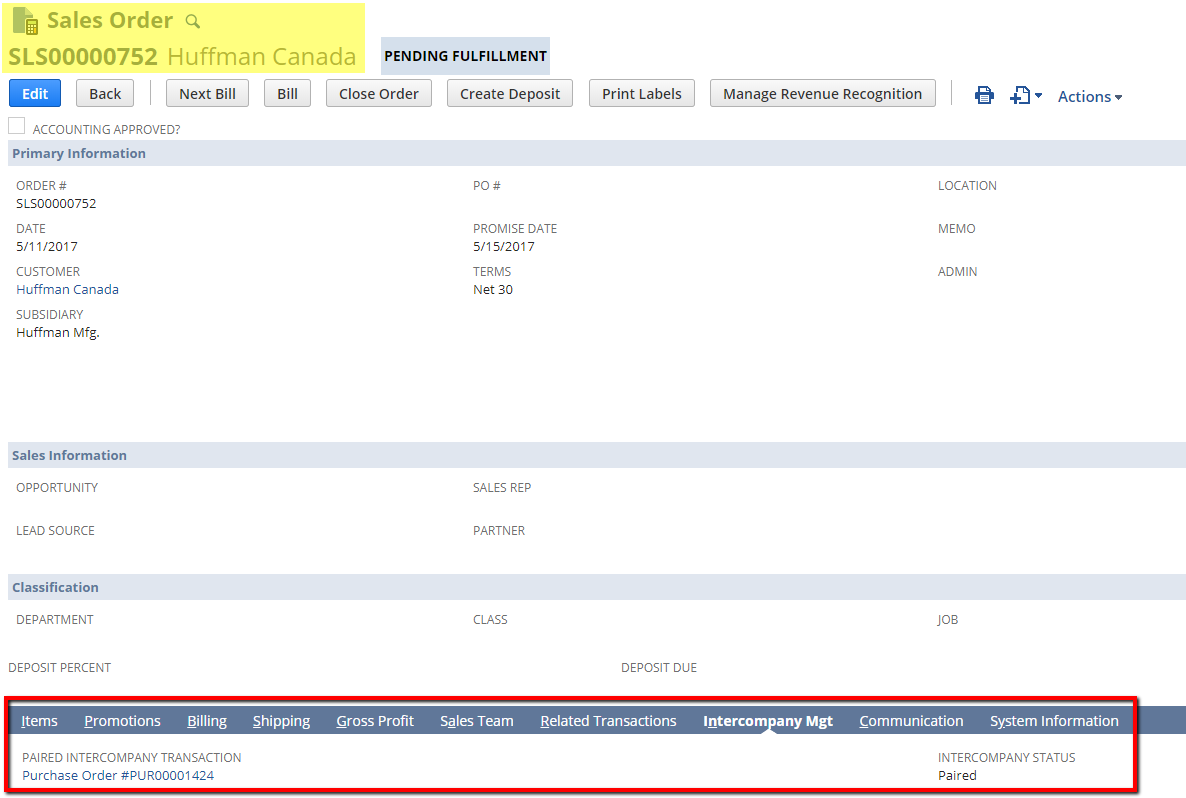
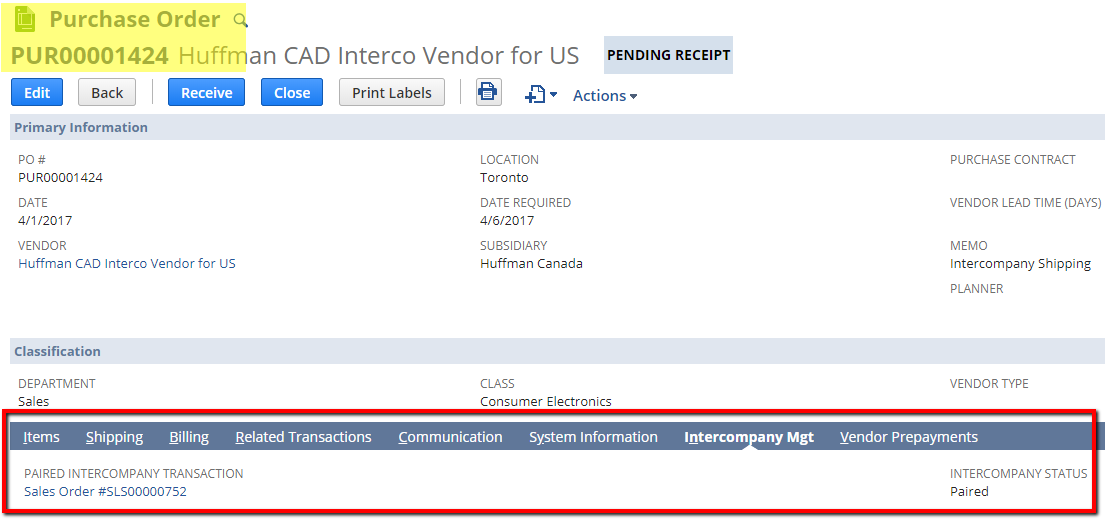
In doing so, when the purchase order and sales order transactions are taken through their normal workflow of invoicing and billing, then the intercompany amounts can be eliminated during the period close process.
If you are still running into issues, we can help! Our team offers a variety of training and support packages to help you get the most out of your NetSuite investment.
{{cta(‘7cdfb316-4181-4931-8676-9864062200e7’)}}