

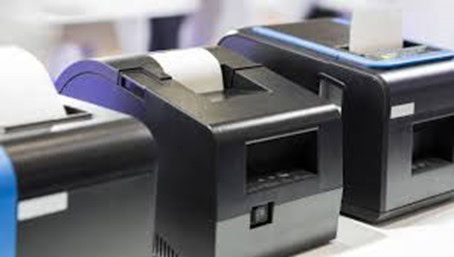
This guide walks you through everything you need to print labels from NetSuite in EPL or ZPL format: installing and sharing your printer on Windows, creating a batch file to route label files, and configuring NetSuite to output labels in EPL or ZPL format.
Step 1: Install & Share Your Thermal Printer
Start by installing the printer driver following your manufacturer’s instructions. Once installed, share the printer on your network so NetSuite’s label files can reach it.
- Open Control Panel > Devices and Printers
- Right-click your printer and open Printer Properties
- Go to the Sharing tab and check Share This Printer
- Enter a name in the Share Name field
- Click OK
Important: The printer share name cannot contain spaces. Use something like ThermalLabel or ZebraZPL.
Step 2: Create a Batch File to Route Labels
NetSuite outputs label files in EPL2 or ZPL format. A small batch file tells Windows how to send those files directly to your thermal printer. Open Notepad and paste the appropriate command for your setup:
For a USB / Local Printer:
Net use LPT2: \\%ComputerName%\PrinterName
Copy %1 LPT2
Net use LPT2: /Delete
For a Network Printer:
print /d:\\Server\PrinterName %1
Replace PrinterName with your printer’s share name. For network printers, also replace Server with your print server name.
Save the file as label.bat — make sure to select All Files as the file type so it saves as .bat and not .txt.
Step 3: Register EPL2 & ZPL File Extensions
Windows needs to recognize label file formats and know how to open them with your batch file.
- From the Start menu, search Indexing Options and open it
- Click Advanced > File Types
- Add epl2 as a new extension, then repeat for zpl
- Right-click a saved EPL2 or ZPL file > Open With > Choose default program
- Browse to and select your label.bat file
- Check “Always use the selected program” and click OK
Step 4: Configure NetSuite for Thermal Labels
With your printer ready, configure your shipping account inside NetSuite to output in the correct format.
- Go to Setup > Accounting > Setup Tasks > Shipping
- Click the shipping account you want to configure
- In the Label Type field, select the format for your carrier and label size (see table below)
- Click Submit
| Format | Size | Supported Carriers |
| EPL | 4 x 6 | UPS, USPS |
| EPL | 4 x 8 | UPS |
| ZPL | 4 x 6 | FedEx, UPS |
| ZPL | 4 x 8 | UPS |
| ZPLII | 4 x 6 | FedEx, USPS |
| ZPLII | 4 x 8½ | FedEx |
| ZPLII | 4 x 10½ | FedEx |
Step 5: Print Your Labels
Once an order is fulfilled, printing is straightforward:
- Go to Transactions > Management > Print Checks and Forms
- Click Integrated Shipping Labels
- Set Starting Label to 1 (or 2 to start on the second label)
- Select your carrier, or choose All
- Leave Single Label Per Page unchecked (that setting is for PDF only)
- Check the box next to each order you want to print, then click Print
A window will appear with download instructions. The label file will automatically open with your batch file and print to your thermal printer. Attach the label to the package and it’s ready for drop-off or pickup.