

Poor inventory visibility costs midsized companies real money, in excess stock, stockouts, delayed fulfillment, and margin erosion. If your team is still relying on spreadsheets or disconnected systems to track what you have and where it sits, you’re making financial decisions on incomplete data. Acumatica inventory management gives finance and operations leaders a unified, real-time view of inventory across warehouses, locations, and channels, directly inside the ERP.
But having the right tool only matters if you configure and use it well. That’s where strategy comes in. At Concentrus, we help midsized companies implement Acumatica with our ROI Roadmap™ methodology, ensuring every module, including inventory, is tied to measurable financial outcomes like improved cash flow, tighter carrying costs, and faster turns.
This guide breaks down Acumatica’s core inventory management features, walks through best practices for getting the most from the platform, and gives you a clear path to stronger inventory control that actually shows up on your bottom line.
What Acumatica inventory management does well
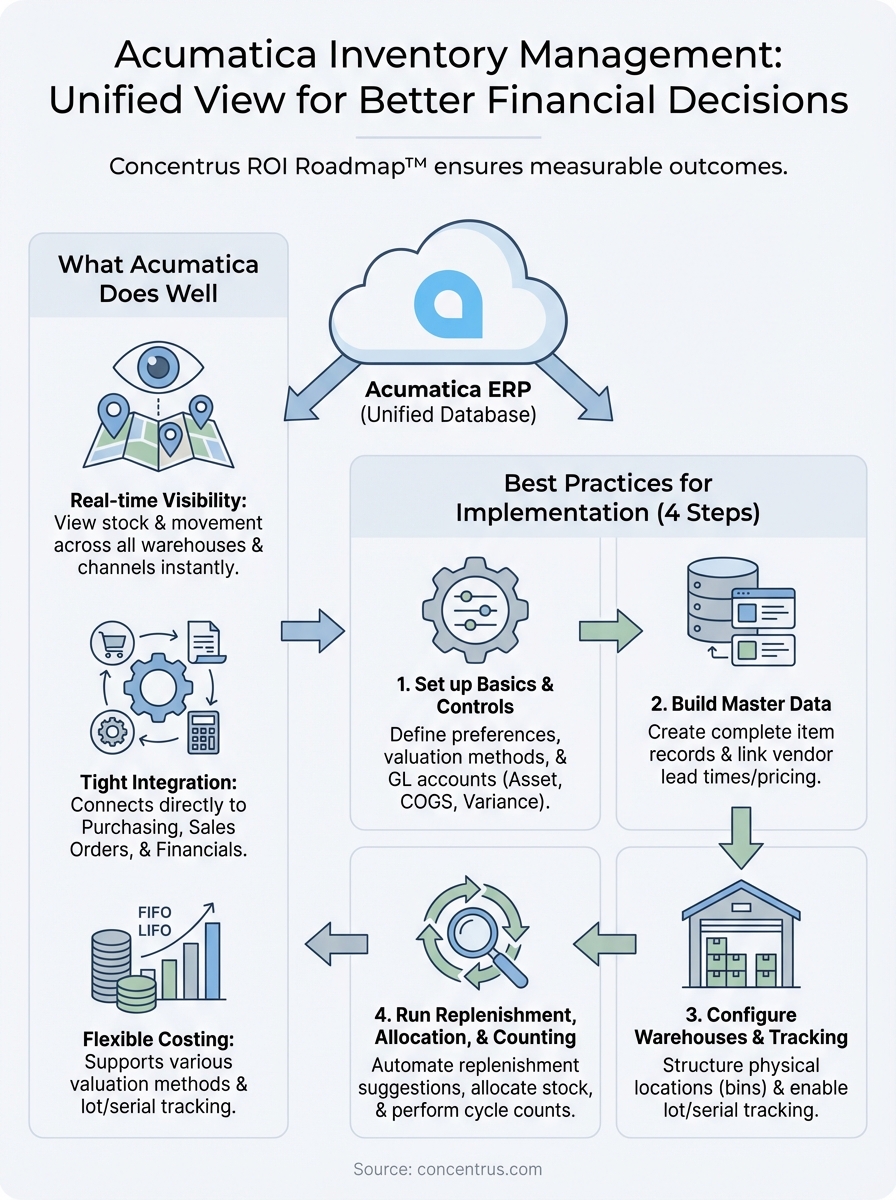
Acumatica inventory management stands out because it was built as part of a fully connected ERP, not bolted on as an afterthought. That means your inventory data shares the same database as your financials, purchasing, sales orders, and production, giving you accurate, real-time numbers without manual syncing or end-of-day reconciliation headaches.
Real-time visibility across every location
One of the biggest wins for finance leaders is the ability to see stock levels, valuations, and movement across multiple warehouses in a single dashboard. You don’t need to pull reports from separate systems or wait for a batch update. Acumatica updates inventory in real time as transactions occur, so your team always works from current data, not yesterday’s snapshot.
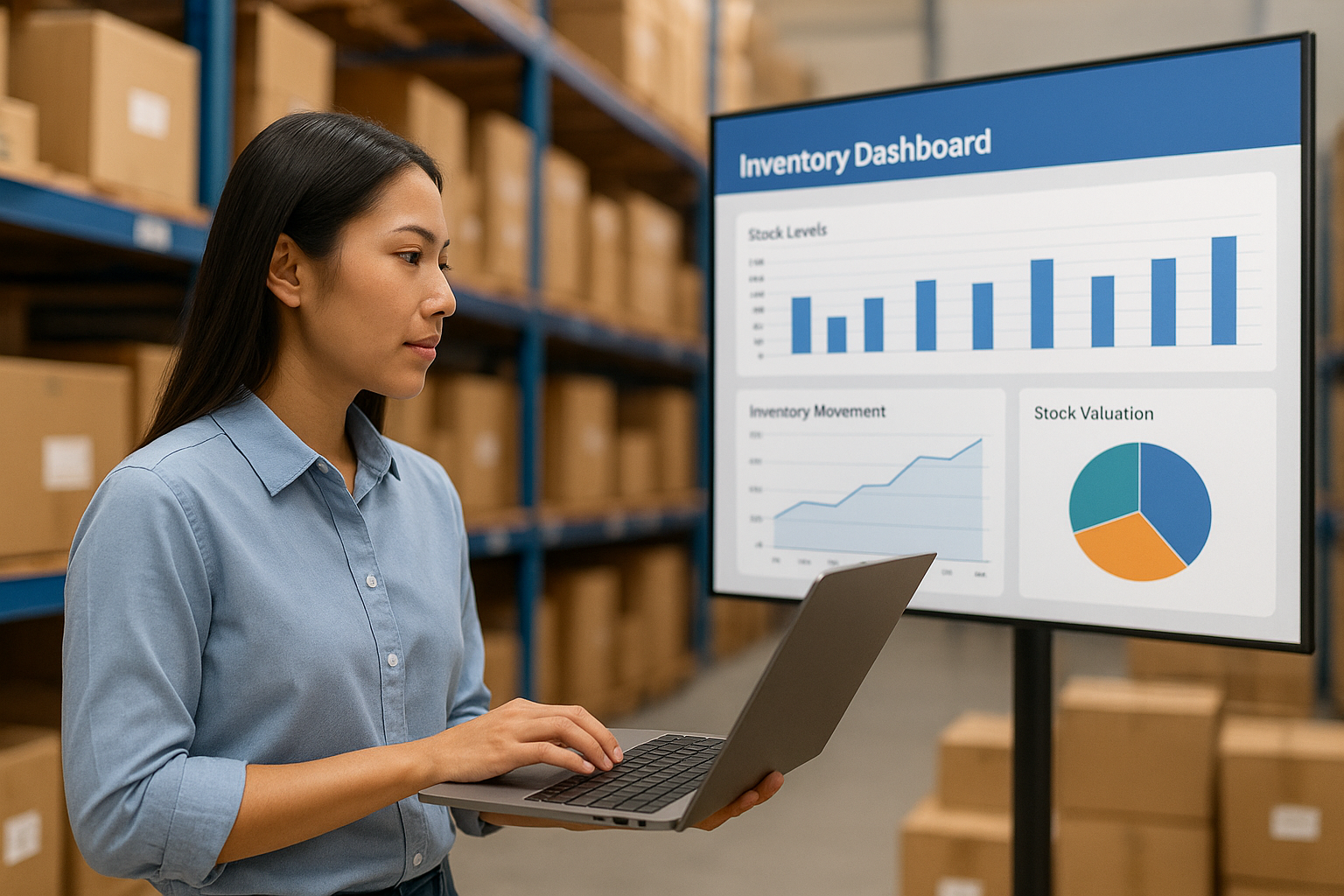
When your financial reporting and inventory counts come from the same system, you eliminate the reconciliation gap that creates costly discrepancies at month-end.
Tight integration with purchasing and sales
Acumatica connects inventory directly to your purchase orders, sales orders, and accounts payable, so every receipt, shipment, and return updates your counts automatically. This removes manual entry errors and gives you a clear view of committed stock versus available stock at any point. Your team can promise accurate delivery dates and avoid overselling because the numbers are always current.
Your purchasing team benefits just as much. Vendor lead times, reorder points, and demand forecasts feed directly into replenishment workflows, so you’re not relying on gut feel to decide when to buy.
Flexible costing and valuation methods
You can choose from FIFO, LIFO, standard cost, or average cost valuation methods and apply them at the item or item class level. This flexibility matters when you need inventory valuation to align with your accounting policies and tax reporting requirements. Acumatica also supports lot and serial number tracking, which is critical if you operate in regulated industries or need full traceability for warranty or recall situations.
Step 1. Set up inventory basics and controls
Before you add a single item, configure Acumatica’s inventory preferences and control settings so the system behaves consistently with your accounting policies. Skipping this step creates downstream problems in costing, reporting, and reconciliation that are difficult to undo later.
Enable the inventory module and set preferences
In Acumatica, navigate to Inventory > Preferences to define your foundational settings. You’ll make decisions here that affect every item in the system, including your default valuation method (FIFO, LIFO, average cost, or standard cost), your inventory update cycle, and whether you require warehouse-level control. Set these values before you go any further.
Getting your costing method right from day one prevents painful restatements when you run financial reports.
Key preferences to confirm before moving on:
- Valuation method: Match your accounting policy
- Posting period settings: Align with your financial close cycle
- Negative inventory: Decide whether to allow or block it
- Lot and serial tracking: Enable if you need item traceability
Define your control accounts
Your inventory control accounts in Acumatica inventory management link every stock transaction directly to your general ledger. Assign the correct accounts at the item class level so your financial statements reflect inventory movements without manual journal entries.
| Account Type | Purpose |
|---|---|
| Inventory asset | Tracks on-hand stock value |
| COGS | Records cost when items ship |
| Inventory variance | Captures standard cost adjustments |
Step 2. Build your item and vendor master data
Your item and vendor records are the foundation of acumatica inventory management. Weak master data here, with missing costs, incorrect units of measure, or misaligned vendor lead times, creates errors that ripple through purchasing, fulfillment, and financial reporting.
Create your item records
Each inventory item in Acumatica needs a complete record before you assign it to a warehouse or run a transaction. Set these core fields on every item to keep your data consistent:
| Field | What to set |
|---|---|
| Item class | Groups items for costing and GL accounts |
| Base unit of measure | Drives all quantity calculations |
| Default cost | Starting value for cost methods |
| Sales and purchase units | Conversion rates if different from base |
| Lot/serial class | Controls tracking requirements |
Incomplete item records are one of the most common reasons inventory valuations diverge from the general ledger.
Set up vendor master data
Once your items are defined, link each one to its primary vendor using Acumatica’s vendor catalog under Purchases. Enter your vendor lead times, minimum order quantities, and vendor-specific pricing directly on the item-vendor relationship record. Acumatica uses this data to drive replenishment suggestions automatically, so your purchasing team gets accurate recommendations without manual lookups.
Step 3. Configure warehouses, bins, and tracking
Once your items and vendors are in place, structure your physical storage in Acumatica so the system knows exactly where each unit lives. In acumatica inventory management, warehouses represent your physical locations, and bins represent the storage slots within those locations. Getting this structure right determines how accurately your team can pick, count, and value stock.
Define warehouses and bin locations
Navigate to Inventory > Configuration > Warehouses to create each warehouse record. Enable bin and shelf tracking within the warehouse settings if your team needs precise slot-level visibility. This is especially valuable in environments where you carry hundreds of SKUs across large facilities.

Turning on bin-level tracking after your team has already been receiving and shipping creates significant cleanup work, so make this decision before go-live.
For each warehouse, configure:
- Receiving location: Default bin for incoming stock
- Shipping location: Default bin for outbound picks
- Return location: Bin for returned goods pending inspection
Enable lot and serial tracking
Set your lot or serial class on each item record that requires traceability. Acumatica enforces lot or serial number entry at every transaction point, including receipts, transfers, and shipments, once you assign a class. This gives you a complete audit trail without relying on manual documentation outside the system.
Step 4. Run replenishment, allocation, and counting
With your warehouses structured and items tracked, acumatica inventory management gives you automated tools to keep stock at the right levels without constant manual oversight. This step covers the three operational workflows you’ll run on a regular basis: replenishment, allocation, and physical counting.
Trigger and review replenishment suggestions
Acumatica generates replenishment suggestions based on the reorder points and vendor lead times you set in your item records. Navigate to Inventory > Replenishment > Prepare Replenishment and run the process for your selected warehouse. Review the suggested purchase orders before releasing them, checking quantities against your current demand and available budget.
Reviewing replenishment suggestions before release lets your team catch over-ordering early, before a purchase order commits your cash.
Allocate stock and run cycle counts
Allocation rules in Acumatica let you reserve specific quantities for open sales orders so your fulfillment team never promises stock that is already committed elsewhere. Set allocation rules under Inventory > Configuration > Allocation Rules, then link them to your sales order types.
For cycle counts, follow this repeatable process to keep your on-hand records accurate:
- Navigate to Inventory > Physical Inventory > Generate Physical Inventory Count
- Select the warehouse and item class to count
- Print count sheets and complete the physical count
- Enter results and review variance amounts before posting
Next steps
Acumatica inventory management gives you the tools to stop guessing and start making inventory decisions backed by real data. But the platform only delivers results when your configuration, master data, and workflows are set up to match how your business actually operates. The four steps in this guide give you a clear sequence to follow, from preferences and item records through warehouses and daily operations, so you build on a solid foundation rather than patch problems after go-live.
Your next move depends on where you are right now. If you are starting a new implementation, work through each step in order and validate your settings before you load data. If you are running Acumatica already but struggling with inventory accuracy or reconciliation gaps, an ERP assessment can identify exactly where your configuration is breaking down.
Concentrus works with midsized companies to get this right. Talk to an Acumatica ERP expert and find out what a structured implementation can do for your margins.